

Actions
Book meetings with Calendly & Cal.com
Let your AI chatbot show available times and book meetings with Calendly or Cal.com right inside the conversation, in 12- or 24-hour format.
Under Build › Actions, pick Retrieve and book slots on the Calendly or Cal.com card. The first time, you sign in to Calendly or Cal.com in a small window; the account also shows on Integrations. An agent can have up to 10 booking actions for each.
| Setting | Description |
|---|---|
| Account | The Calendly or Cal.com account to book with. |
| Event | The event visitors schedule. The Action name and When to use follow the event you pick until you change them. |
| Action name | For example “Schedule a consultation”. Helps the agent know when to use it. |
| When to use | When to offer times. If the visitor gives no date, the agent looks from today for one week. |
| Time format | Auto (default: each visitor sees their own format), 24-hour, or 12-hour. Slots always show in the visitor's own time zone. |
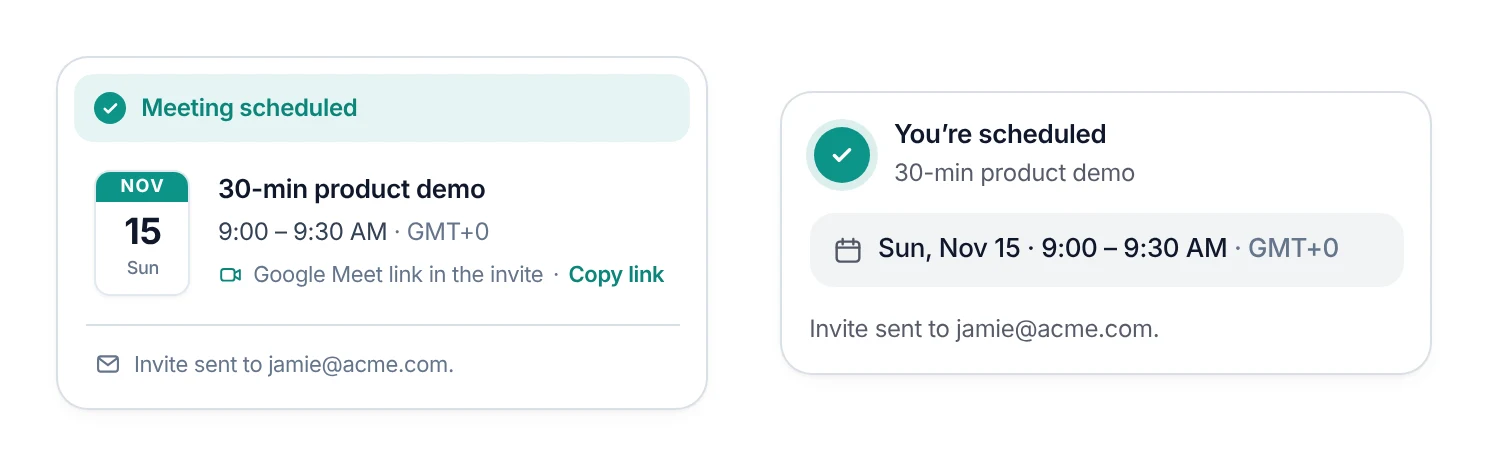
| Confirmation | The card visitors see once the meeting is booked: Detailed (default) or Compact. See After booking. |
- Calendly — scheduling opens inside the chat.
- Cal.com — the agent books in the chat after the visitor gives their name, email and an optional note for you.
After booking
The times card turns into a confirmation. Pick its look with Confirmation:
| Style | What visitors see |
|---|---|
| Detailed | A “Meeting scheduled” banner, the date as a small calendar page, the start and end time with the time zone, the video app (Google Meet, Zoom, Microsoft Teams…) with Copy link, and the email the invite went to. |
| Compact | A tick with “You’re scheduled”, the meeting name, one line with the date and time, and the email the invite went to. |
Note
The invite email from Calendly or Cal.com holds the meeting link and the reschedule and cancel links, and adds the meeting to the visitor’s calendar.
Was this page helpful?
Need help? Contact support — we reply within one to two business days.