

Actions
Talk to a person
Give visitors a button to reach your team in the Assistrio Helpdesk, when the AI suggests it or always, with no AI credits used.
Talk to a person gives visitors a button to reach your team. Tapping it opens a ticket in your Helpdesk, with no AI reply and no AI credits. Open the Playground, then Chat experience › Talk to a person.
Needs your Helpdesk
Turn on Assistrio Live Chat or a Helpdesk escalation first, without Only use in workflows. Until then the switch shows Needs Helpdesk. If you turn those off later, the button stops showing, and your settings are kept.
When to show it
When the AI suggests it
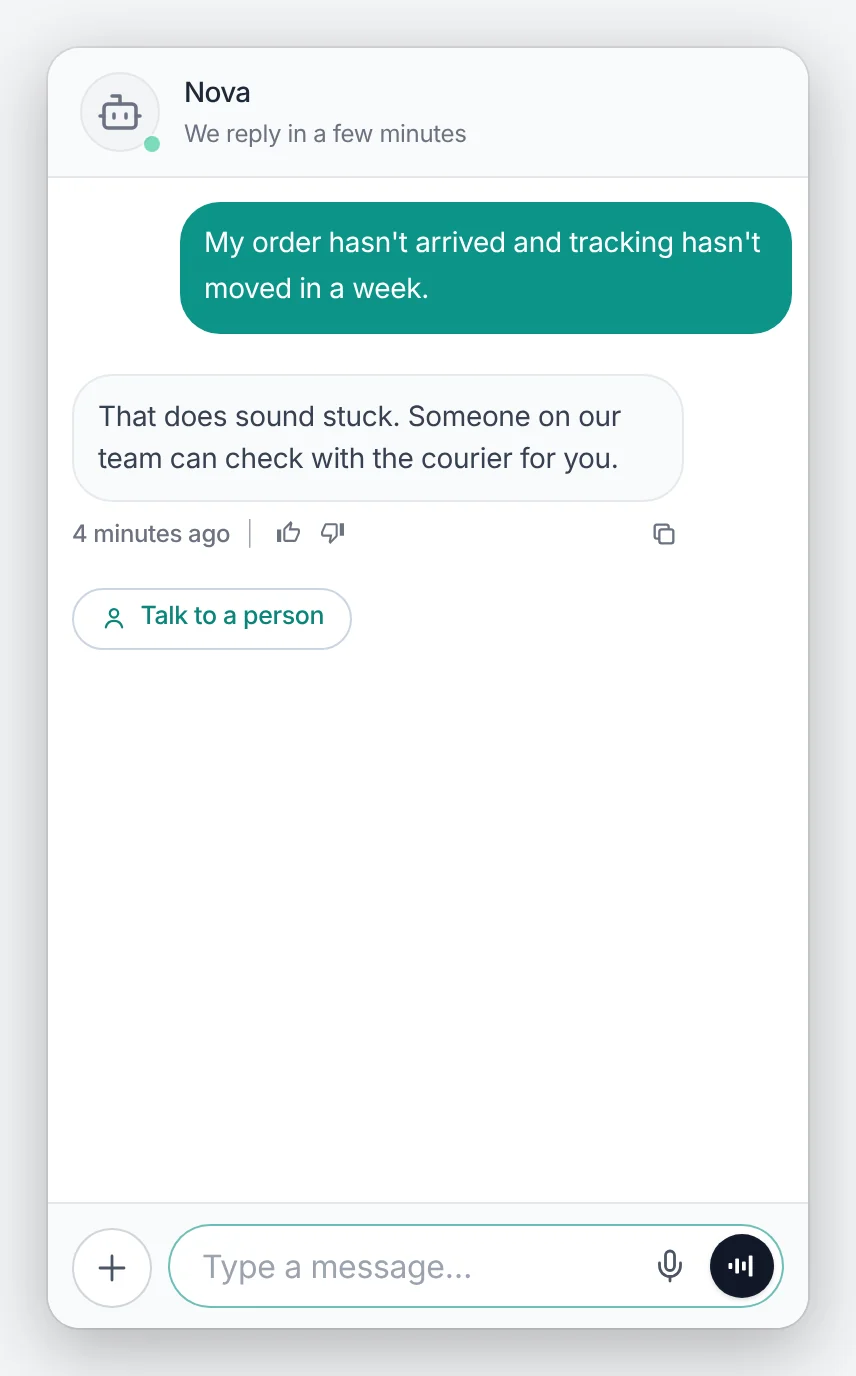
The agent shows the button under its reply when a person can help (your Live chat When to use). The chat goes to your team only if the visitor taps it. This is the same setting as Live chat › Ask the visitor first, so it needs Assistrio Live Chat turned on.
Always
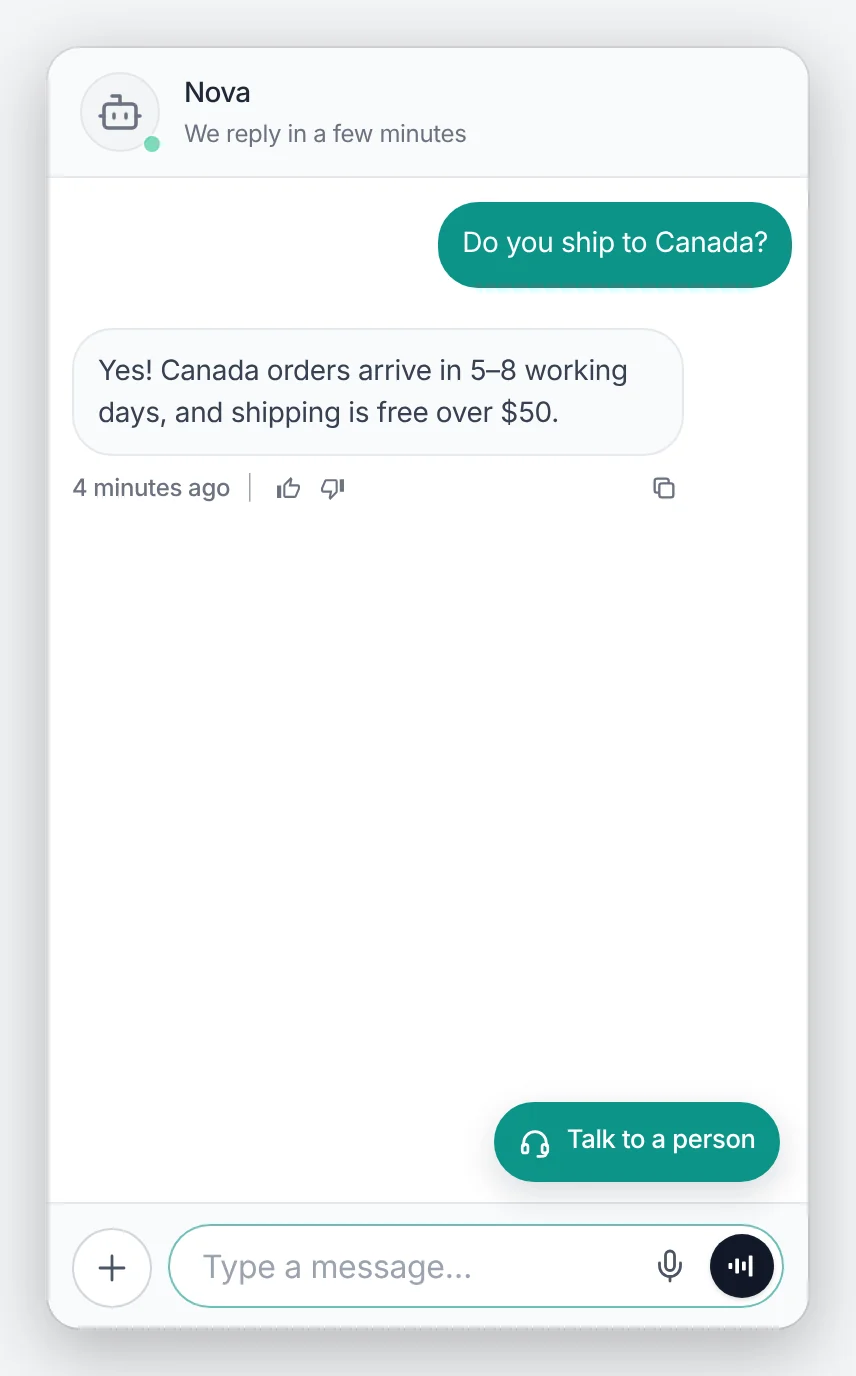
A round button floats above the message box once the visitor has written. Its text shows, in your brand colour, on hover (on phones, always), and once when it first appears. Tapping it asks for your team right away.
How it works
- 1
The visitor taps the button
Its text shows in the chat as the visitor's message.
- 2
A ticket opens
In the Helpdesk, marked Asked by the visitor. With the AI's suggestion, the ticket has the agent's summary and any details it collected.
- 3
Your team is online
The visitor gets your Live chat Message to the visitor and waits in the chat (“Waiting for support agent to join”), with the same wait timer and alerts as Live chat.
- 4
Your team is away
Outside office hours, or with nobody Available, the visitor gets your away message and can leave their email for the reply.
- 5
Your team replies
From the Helpdesk, in the same chat. The AI stays quiet until the ticket is Closed or Cancelled.
Settings
| Setting | What it does |
|---|---|
| Show a “Talk to a person” button | Turns the button on or off. |
| When to show it | When the AI suggests it or Always. One at a time. |
| Button text | The words on the button (up to 40 characters). Default: “Talk to a person”. |
Questions
Was this page helpful?
Need help? Contact support — we reply within one to two business days.