

Actions
Shopify & WooCommerce actions
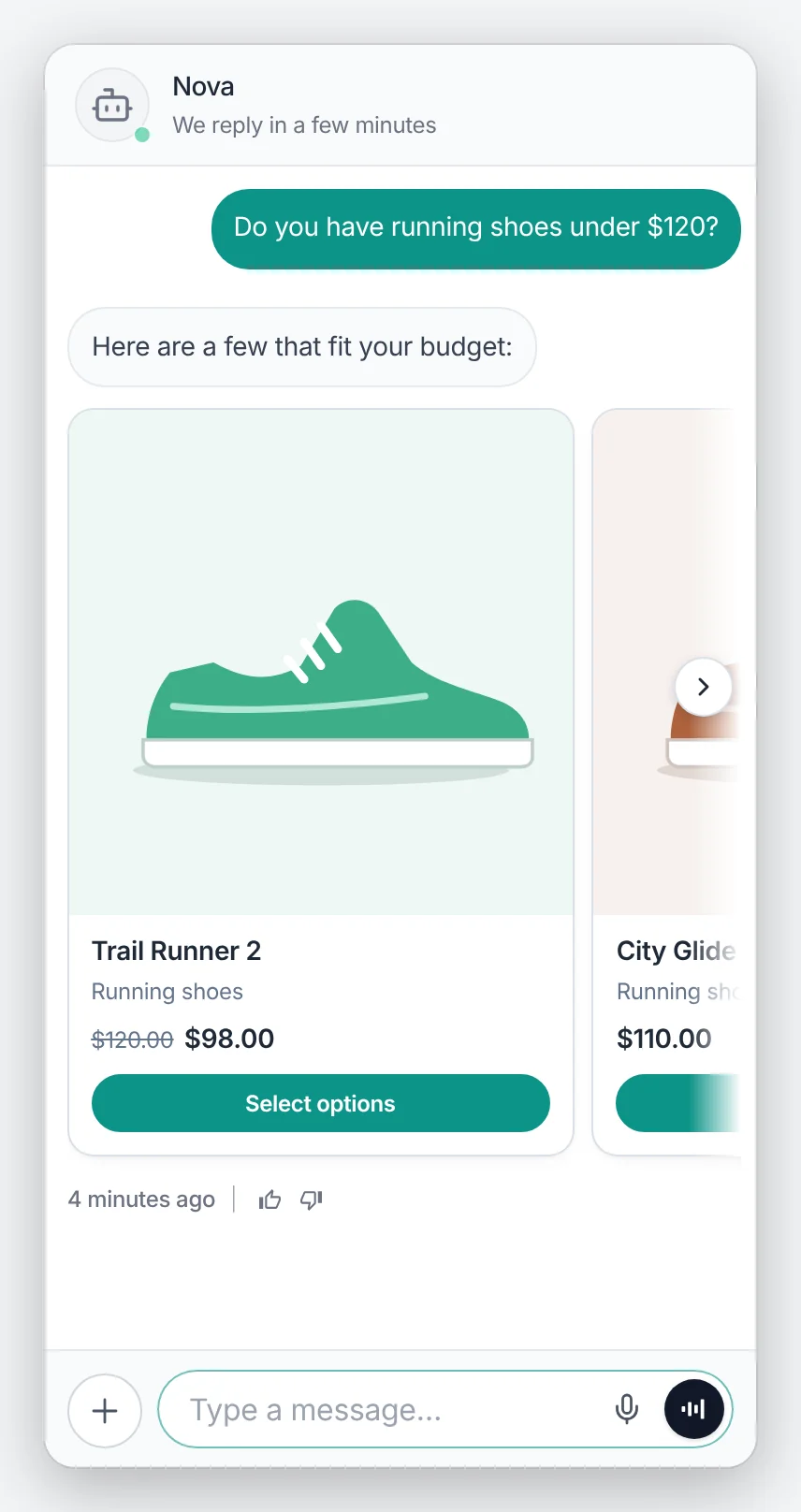
Let your AI chatbot show products, manage carts, create orders, track shipments, and handle returns and exchanges for Shopify and WooCommerce.
Under Build › Actions, pick an action on the Shopify or WooCommerce card. The first time, you connect your store: Shopify asks for your .myshopify.com address (find it in Shopify › Settings › Domains) and a sign-in; WooCommerce asks for your shop's web address, then you approve Assistrio on WooCommerce's own screen. You can use each action up to 3 times per agent, each with its own Action name.
Actions
| Action | What it does and its settings |
|---|---|
| Retrieve and display products | Shows products as cards. Exclude out-of-stock products, Add to cart button. |
| Get cart / Update cart | Shows or changes the shopper's cart. |
| Create order | How shoppers pay (Online payment, Cash on delivery, or Free — free is limited to 2 orders per chat), Use the shopper's cart, Phone number (Required / Optional / Don't ask), Order tags (up to 5), Order note. |
| Retrieve and display orders | Order status and tracking. Guests confirm with Email, Phone number, or Email or phone — shoppers who aren't signed in give the order number and this. |
| Tag an order | Adds one of your tags to a signed-in shopper's order. Tags the agent may add (up to 10) — it can't add any other tag. |
| Update customer profile / Update billing address | Changes the signed-in customer's details. |
| Check account & send activation email | For shoppers who can't sign in. Shopify sends the activation email; WooCommerce gives your shop's reset password link. |
| Create return or exchange | Return window (days after delivery; empty for no limit), Guests confirm with, Allow exchanges, Approve returns automatically. |
| Create exchange | Return window and Guests confirm with. Shopify creates a draft order tagged “exchange” for your team to approve; WooCommerce creates a free order left as Pending payment, so nothing ships until your team sets it to Processing. |
Note
Actions that change your store (orders, tags, customer details, returns) need your permission first. The action shows Allow in Shopify or Allow in WooCommerce — click it and approve in the small window.
Signed-in shoppers
Actions that use the signed-in customer need identity verification: create a secret key under the agent's Deploy settings and use the Shopify or WordPress install code. See Identity verification.
Was this page helpful?
Need help? Contact support — we reply within one to two business days.