

Test & Customize
Playground: test and customize your chatbot
Test your AI chatbot before launch, see which knowledge it used, and customize the chat widget's colors, avatar, launcher, welcome message, and quick links.
The Playground shows a live preview of your agent on the right and settings on the left, in four tabs: Overview, Display, Chat experience, and Actions. Use the channel picker to preview the Chat Widget, Help page, Center Stage, Slack, or Email.
Test answers
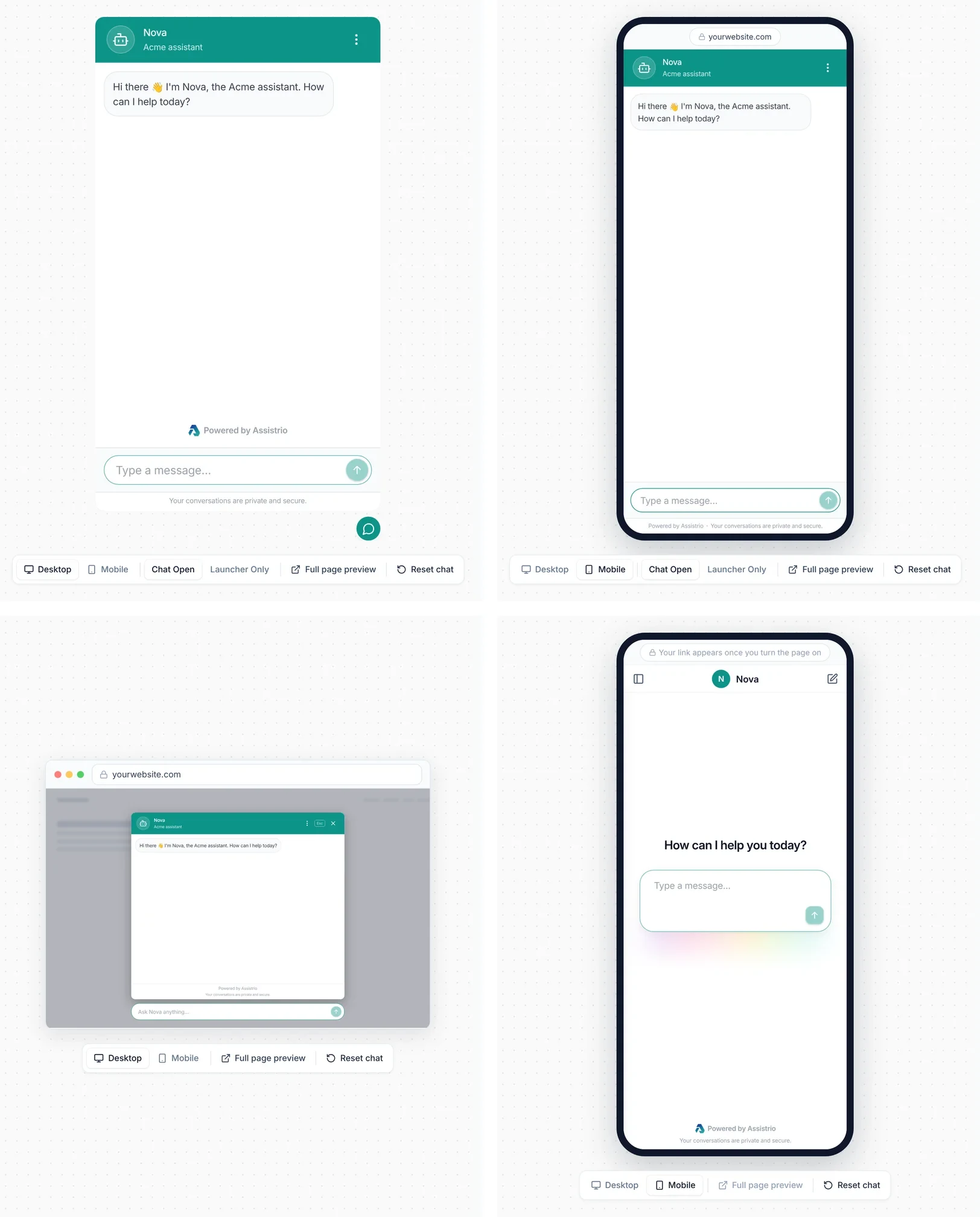
- Ask questions the way customers do. Every preview has Desktop and Mobile. On Desktop the Chat Widget shows at full size, and Center Stage and the Help page show in a browser window, drawn at a real screen size. On Mobile all three show in a phone, where the Chat Widget opens full screen like on a real phone. Narrow previews start on Mobile.
- The Chat Widget also has Chat Open or Launcher Only. Full page preview opens the channel in a new tab (the Help page once it's turned on), and Reset chat starts a new test chat.
- If Sources is turned on for the preview, open Sources on a reply to see which knowledge it used.
- If an answer is wrong or missing, add or fix knowledge, train, and ask again.
Overview
See each channel's visibility, how much knowledge the agent has, and its reply settings. The Help page, Slack, and Center Stage can sync with your global instructions or use their own.
Display
Profile, theme and branding, buttons and links, chat panel, launcher, composer, and proactive message styles. See Appearance.
Chat experience
Welcome message, voice, dictation and file uploads, feedback buttons, saved conversations, auto-open, quick links, and what visitors see when your team takes over. See Chat experience and Proactive messages.
Actions
Your actions lists the agent's actions with on/off switches, plus Add action. Forms, buttons, and booking show in the Chat Widget and Help page; Slack gets the text reply. See Actions.
Share a preview
Share a preview link so teammates can test before launch. On every plan, workspace members can open it; on Starter and Pro you can also turn on Anyone with the link can view. Use Copy link or Open preview, and Reset link to turn off old links.
The preview acts like the Chat Widget on a real site: it opens by itself only if Open automatically is on, the chat button opens it, and ✕ closes it. On phones it opens full screen, like on a phone.
Note
If you leave with unsaved changes, you'll be asked to Save or Discard. Saved appearance changes show on your live site right away — no new install code needed.
Was this page helpful?
Need help? Contact support — we reply within one to two business days.