

Test & Customize
Chat experience
Set your chatbot's welcome message, voice and dictation, file uploads, feedback buttons, saved conversations, auto-open, and quick links menu.
Open the Playground and the Chat experience tab. With the Chat Widget picked, the sections are: Welcome message, Suggested questions, Capabilities, Translation, Messages & Feedback, Talk to a person, Proactive messages, Multiple conversations, Opening & Scrolling, Quick links, When credits run out, and When your team takes over. Click Save when you're done.
Welcome message
Turn on Welcome message and write the Message text (up to 2,000 characters) — the first message visitors see when a chat is empty. Click Name, Tagline, or Description to add them to the message. The Help page and Center Stage can Sync with global welcome message or have their own.
Suggested questions
The Chat Widget, Center Stage, and the Help page each have Suggested questions, with a switch to show or hide each question there. Add or change the questions in Actions › Suggested questions.
Capabilities
What visitors can do in the message box. Each switch is saved right away, and the Help page and Center Stage have their own. All three are off for new agents.
| Setting | Notes |
|---|---|
| Voice messages | Visitors send a voice message. They can cancel while recording and play it back before sending; Show transcript shows the text. Each one uses 2 AI credits. |
| Dictation | Visitors speak and see their words typed into the box. Uses 0.25 AI credits. |
| File uploads | Visitors attach up to 5 files per message, 5 MB each (documents, sheets, slides, text, images, and zip files). Picked files show above the message box; sent ones show as 📎 under the message. |
Translation comes next — see Translation.
Messages & Feedback
- Show message box with suggested questions (Chat Widget only — Center Stage and the Help page always show it). When off, visitors pick a suggestion first, then chat.
- Show copy button — visitors can copy replies.
- Show thumbs up / down on replies — this also turns on the Feedback action. The rating at the end of the chat stays off until you turn it on in Actions › Feedback.
Talk to a person
Turn on Show a “Talk to a person” button to let visitors reach your team in the Helpdesk — no AI reply and no credits. Pick When to show it: When the AI suggests it (needs Assistrio Live Chat) or Always (a round button above the message box), and change the Button text. It needs Assistrio Live Chat or a Helpdesk escalation turned on in Actions first. See Talk to a person.
Multiple conversations
Allow multiple saved conversations per visitor lets visitors start new chats and come back to old ones. Set Saved conversations per visitor to Unlimited or Set a maximum (at least 2 — the current chat counts as one). When it's off, visitors continue their latest chat; they can read older chats in Recent chats, but not reply there.
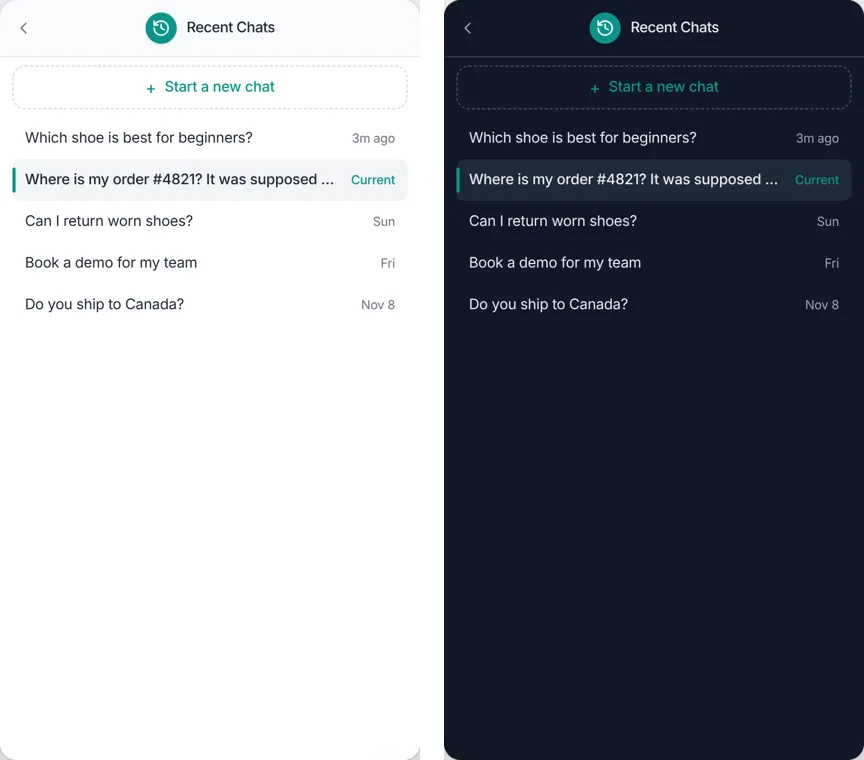
Visitors open Recent chats from the ⋮ menu. Each chat is one line with when it was last active (Just now, 3h ago, Yesterday, a weekday, then the date — hover for the exact date and time). The open chat is marked Current, and Start a new chat is at the top.
Opening & Scrolling
- Scroll to latest button — a small arrow when the visitor scrolls up. Turn on Show “New message” text to label it when a reply arrives, and change the New message text.
- Show message list scrollbar — when off, the list still scrolls; the bar is hidden.
- Show “Expand chat” in menu — offers a larger layout.
- Open automatically on desktop screens and Open automatically on mobile screens (on phones the chat opens full screen). These are for the Chat Widget only: Center Stage always starts as its message box, and the Help page shows only the scrolling settings, under Scrolling.
Quick links
Turn on Enable Quick Links Menu and pick a Menu Button Icon for the header. Add up to 10 links; each has a Label (up to 120 characters), URL (https, mailto, tel, or a /path on your site), and Icon. Drag to reorder.
When credits run out
When your workspace runs out of AI credits, your AI can't reply. Choose what website visitors see until credits are back.
1. Hide the chat (default)
Visitors see nothing: the Chat Widget doesn't show until credits are back.
2. Show a short note
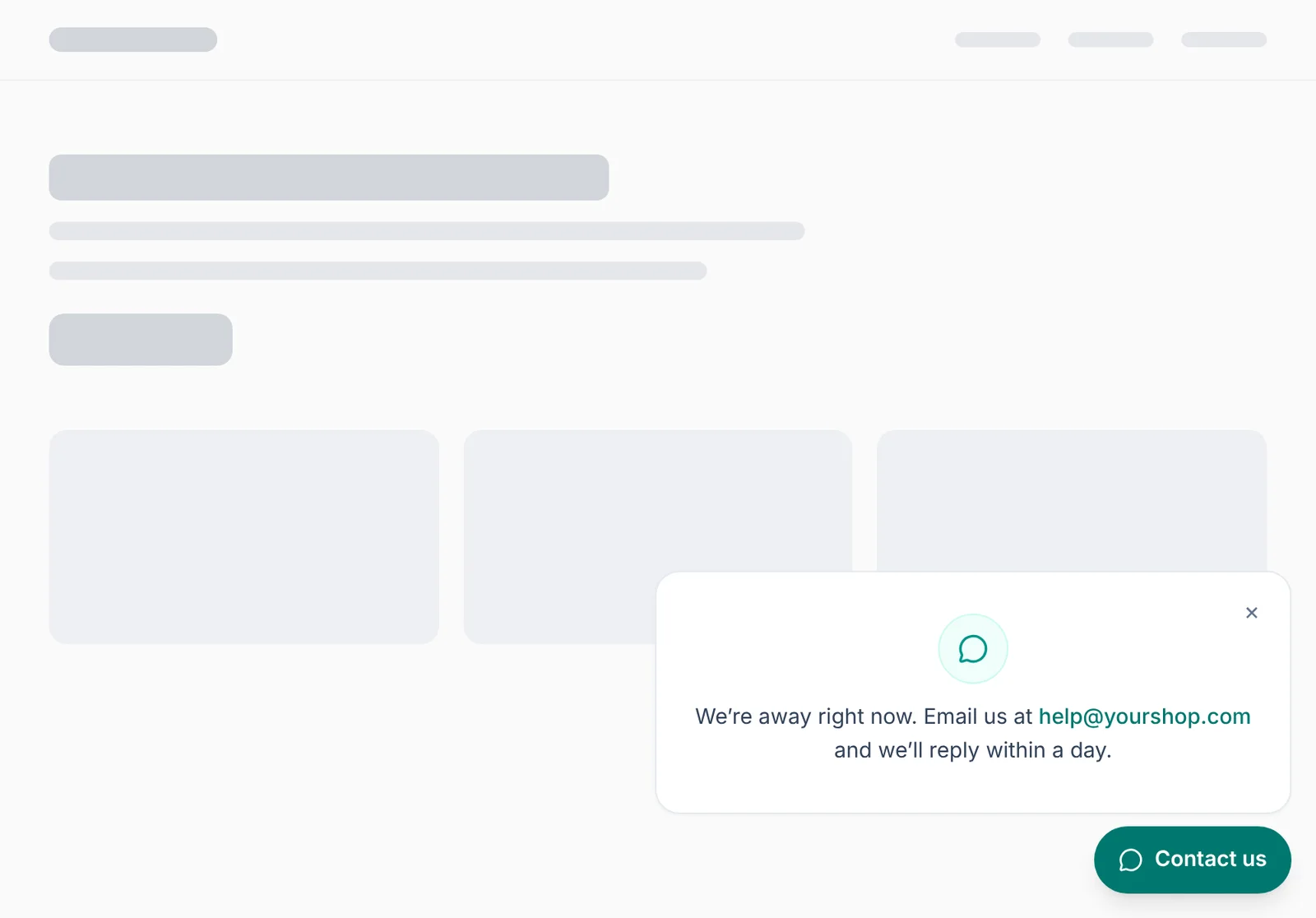
Visitors get a Contact us button that opens your note (up to 500 characters), like how to reach you. Email addresses and links in it can be clicked.
3. Leave a message
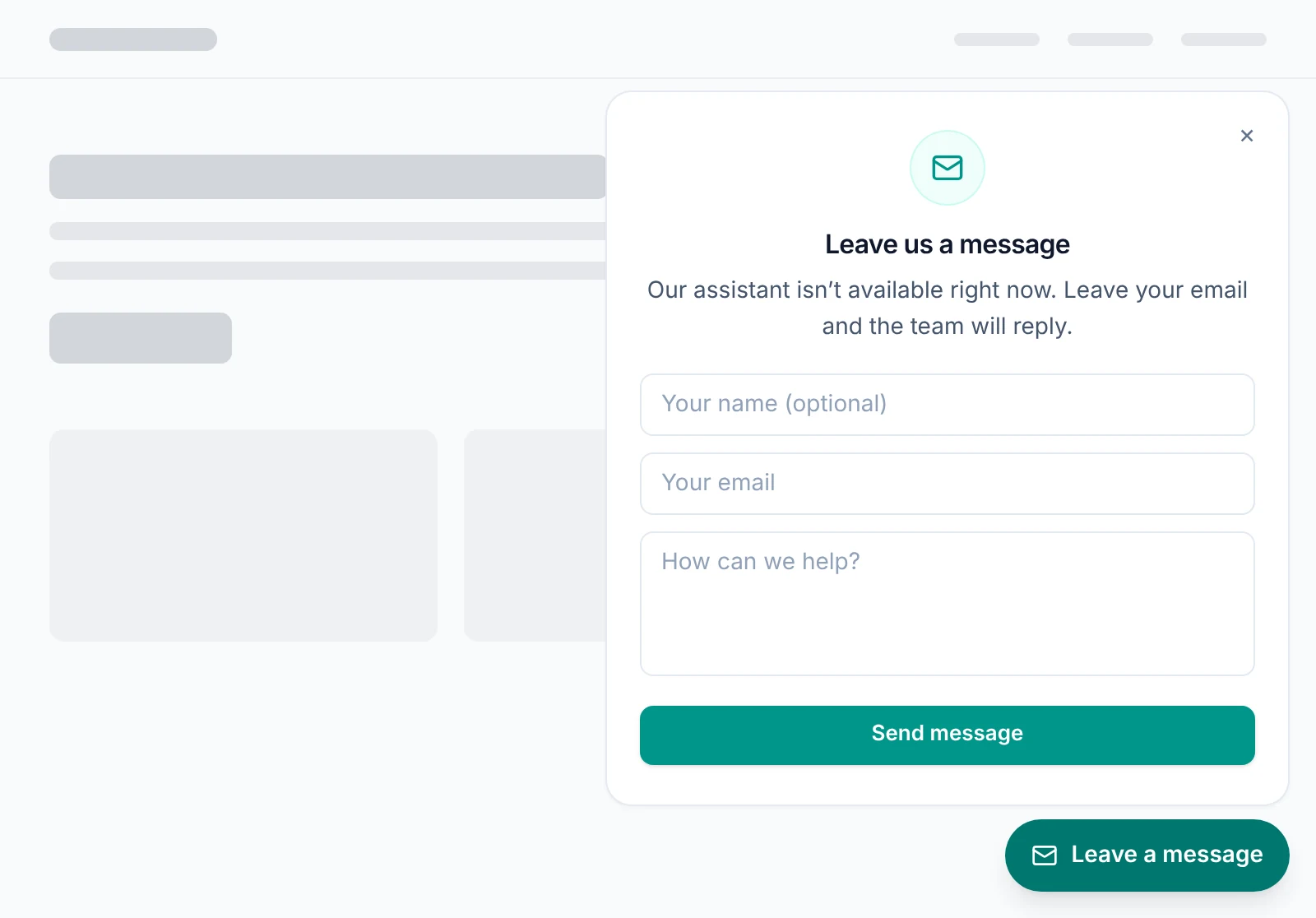
Visitors get a Leave a message button. They leave their email and a message, which becomes a Helpdesk ticket tagged “Left a message”. Your reply goes to them by email.
Note
Leave a message stays locked until the Helpdesk email is set up (Set up Helpdesk email opens the agent's Settings › Email), because your replies go out by email. If it's turned off later, the chat is hidden instead. This choice is for the whole agent: the Help page and Center Stage follow the Chat Widget's.
Tip
To keep your agent replying, buy more credits or upgrade.
When your team takes over
What customers see when your team joins and leaves the chat from the Helpdesk. Click See how it works to play a demo chat with these settings (no credits used). They're saved with the Playground's Save button; the rest of the Helpdesk is under More Helpdesk settings.
| Setting | What it does |
|---|---|
| Name customers see | First name, Full name, or Don't show names above your team's replies. Your team always sees full names in the Helpdesk. |
| Show a “Team” tag | A small Team tag next to the name, so customers know a person is replying. With names hidden, customers see just the tag. |
| Say when your team leaves | A short line in the chat when a ticket is closed. |
| After a ticket is solved | Let the AI reply (the typing box stays and the AI answers) or Show buttons (“Start a new conversation” or “Keep chatting with your agent”). |
| Close quiet tickets | When the customer stops replying, send up to 3 reminders (in the chat, or by email for email tickets), then Close the ticket after a set time, with an optional Send a closing message. |
| While they wait | The line above the typing box until someone replies (up to 80 characters; empty uses the default), with a Loader (Ring, Dots, or None), its Color, and Position. |
| If no one joins within | After this many minutes (or Never), the AI tells the customer the team is busy and will reply here or by email — outside office hours it says when you're back. Also alert the team by email (the assignee, or everyone on the Helpdesk) and in Slack (uses Settings › Slack). |
| Email replies they haven't seen | If the customer closed the website before seeing your reply, it's emailed to them when their email is known — Email it after a delay you pick (3 minutes by default). They can reply to the email. |
Customers see these in their own language.
Was this page helpful?
Need help? Contact support — we reply within one to two business days.