

Actions
Custom button
Show a custom button under your AI chatbot's replies that links to pricing, a booking page, or a sign-up form when the conversation calls for it.
A custom button action adds link buttons under the agent's reply when the conversation calls for it. Open Build › Actions and pick Custom button. Each click makes a new button action, so you can have several (up to 10 per agent), each with its own When to use.
| Field | Description |
|---|---|
| When to use | When the agent should show the buttons, such as “When someone asks about price.” |
| Button text | What the button says, up to 60 characters — for example “See pricing”. |
| Link | The page it opens. |
| Style | Filled (your button color), Outline (a colored border and text), or Link (underlined text in your button color). Each button has its own style. |
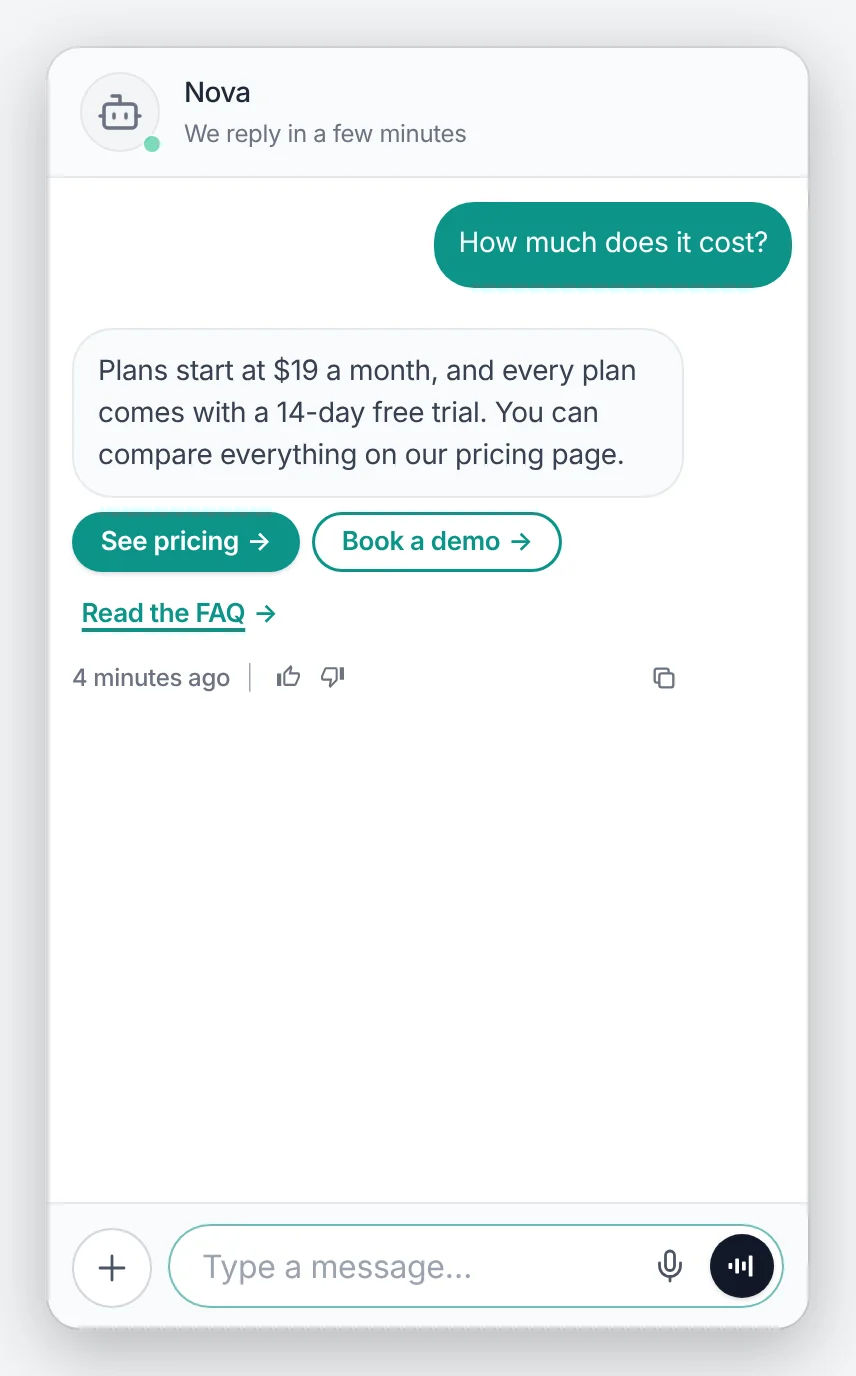
Several buttons in one action
Click + Add button to put up to 3 buttons in one action — for example See pricing, Book a demo and Start free trial. They share the action's When to use and appear together under the reply, side by side and in your order. On small screens they wrap to a new line. Use the arrows on a button to move it up or down, and the bin to remove it.
Tip
Make the main action Filled, a second option Outline, and a quiet extra (like “Read the FAQ”) a Link, so visitors see at a glance which one matters most. Button color, text color and corners are set in Display › Buttons & Links — or click Edit button look on the action.
Was this page helpful?
Need help? Contact support — we reply within one to two business days.