

Actions
Custom forms in the chat
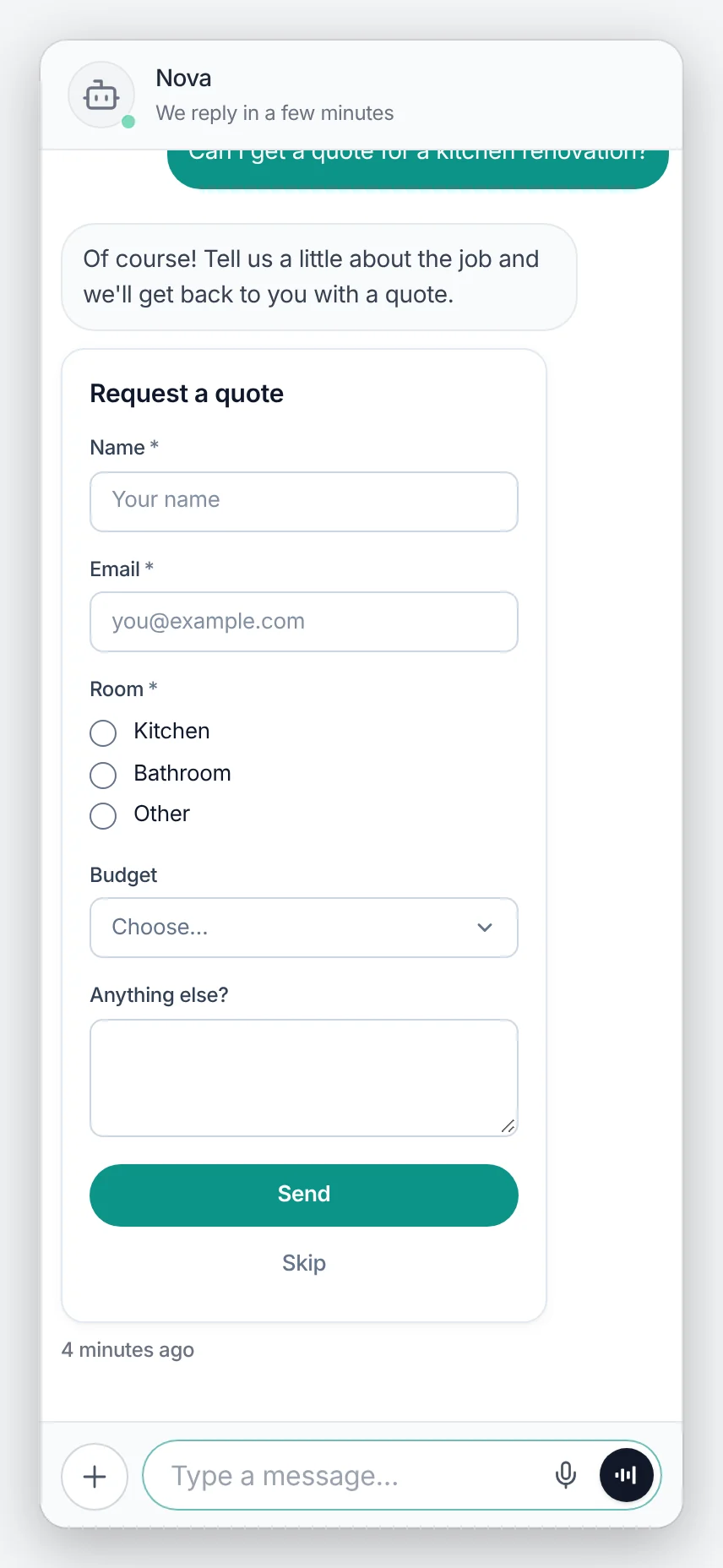
Show forms inside the chat for quotes, bookings, or applications. Answers are saved with the conversation and can be emailed to your team.
A custom form appears inside the chat when the conversation matches. Answers are always saved with the chat and listed under Activity › Custom Forms. Open Build › Actions and pick Custom form — each click makes a new form, up to 5 per agent.
Settings
| Setting | Description |
|---|---|
| Form name | Also the title visitors see in the chat (up to 60 characters). |
| When to use | When the agent should show the form. |
| Email answers to | Optional — up to 5 email addresses. |
| Thank-you message | Shown after the form is sent (up to 300 characters). |
| Allow skipping | Adds a Skip button so visitors can close the form without filling it in. |
| Button position | Where Send sits: Left, Right, or Full width. |
Questions
Add up to 30 questions with Add field — pick one of your shared custom fields or Create new field. Any question type works. Questions that are also lead fields are marked Lead field, so answers fill in the lead too.
- Required — the switch on each row.
- Drag a row by its handle to change the order.
- The ⋯ menu on each row: Edit question and Remove.
- Single and multiple choice questions show their choices under the name; hover a row to see them all. The Type column says how they look in the chat — for example Radio buttons or Dropdown.
Show in preview
Click Show in preview above the questions to see the form in the preview on the right, exactly as visitors will. You can fill it in and press Send to try the errors and the thank-you message — nothing is sent or saved. It follows your changes as you edit, even before you save. Click × to go back to the live preview.
Was this page helpful?
Need help? Contact support — we reply within one to two business days.