

Helpdesk
Helpdesk chat, reviews & AI settings
Set how your team appears in chats, close quiet tickets, send CSAT surveys, translate replies, use AI drafts and summaries, and post tickets to Slack.
Open Helpdesk › Settings (the agent's Settings › Helpdesk). Its sections: Members, Teams & assignment, Scheduling, Email, Slack, Triggers, Ticket statuses, Tags, Macros, Customer reviews, Translation, Draft replies with AI, and AI summaries. Features with their own switch show what they do, with a button to turn them on.
Chat experience
What customers see when your team joins and leaves the chat. Open the Playground, then Chat experience › When your team takes over. Click See how it works for a demo (no credits used).
- Name customers see — First name, Full name, or Don't show names, and Show a “Team” tag next to it. Your team always sees full names in the Helpdesk.
- Say when your team leaves — a short line in the chat when a ticket is closed.
- After a ticket is solved — let the AI reply (the typing box stays and the AI answers; the default for new agents) or show buttons (start a new conversation / keep chatting with your agent).
- While they wait — the line above the typing box until someone from the team replies (default “Waiting for support agent to join”), and its Loader (Ring, Dots or None), Color (brand or grey), and Position (above or left of the text).
- If no one joins within — after this time with no reply from the team (Never, or 1–30 minutes; default 5), the AI tells the customer the team is busy and will reply in the chat or by email. Outside office hours it says when you're back instead. You can also alert the team by email and in Slack.
- Email replies they haven't seen — if the customer closed the website before seeing your reply, email it to them after the time you set (Email it after). They can reply to the email.
- Close quiet tickets — when the customer stops replying, send up to 3 reminders (in the chat, or by email for email tickets), then Close the ticket after a wait, with an optional closing message.
Customers see these in their own language. See also Chat experience.
Customer reviews
Ask customers to rate the help they got when a ticket is solved. Switch on each place separately: Chat Widget, Email, and Slack. One Question and Rating style (Stars, Faces, or a 0–10 score) are used everywhere. Not asked for cancelled tickets. Results show in Helpdesk › Reports, per teammate.
In the Chat Widget
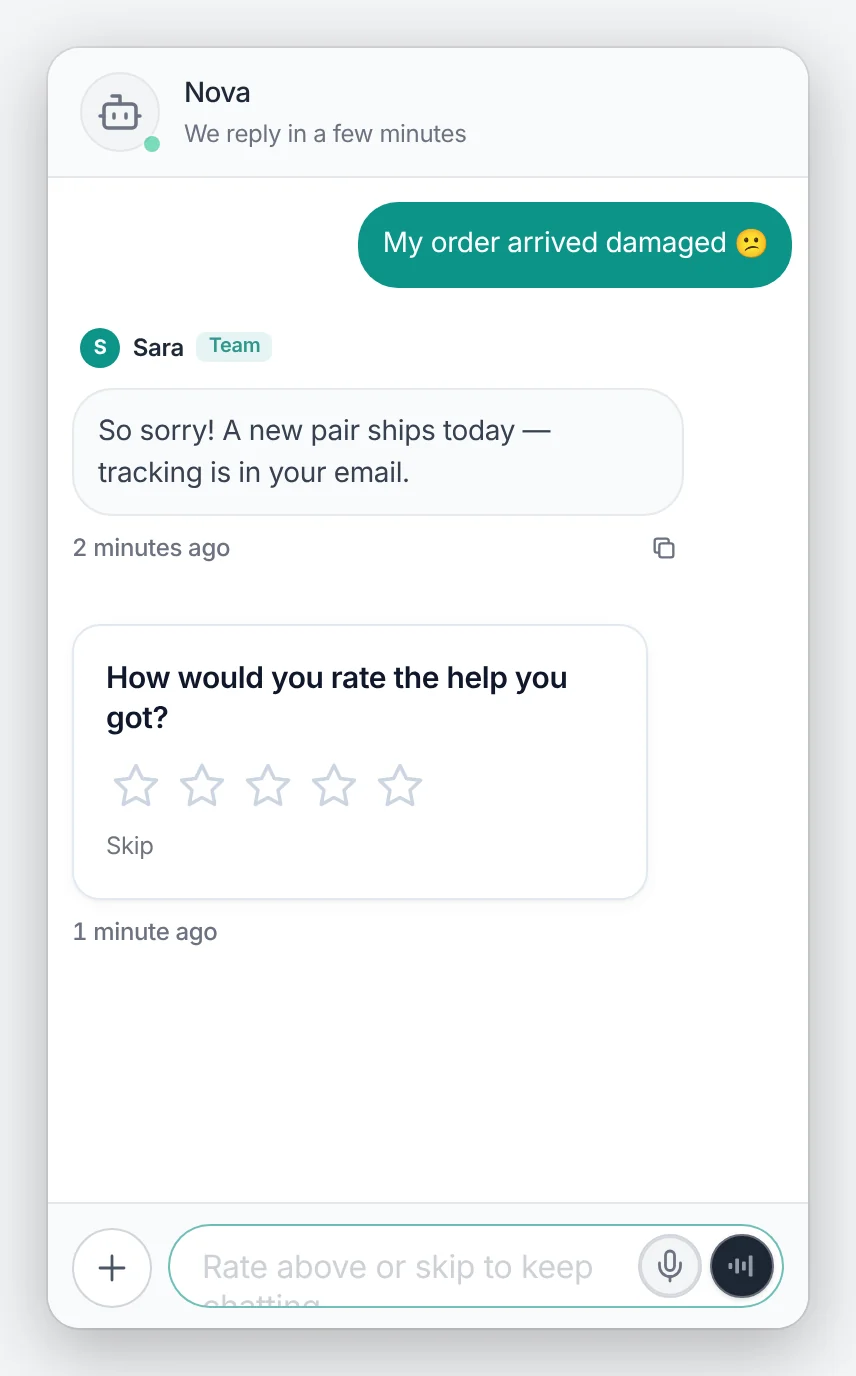
Right after your team solves the ticket, the customer gets a rating card in the chat. After a low rating they can tell you what could be better. Customers who asked in Slack get the same question with rating buttons in their Slack thread.
By email
Email tickets get a short survey a while after closing. Turn on Chat tickets too to also send it when a chat customer left an email and didn’t rate in the chat. One tap rates; customers can add a comment and change their answer for 30 days.
- Send it — from 1 minute to 48 hours after closing.
- How often per customer — every closed ticket, or at most once a week, month, or 3 months.
- Subject (the ticket number is added at the end) and Message, and Don’t send for tickets tagged. Customers read it in their own language.
How did we do? [#1042]
Acme Support
to me
Thanks for getting in touch. We would love to know how we did.
How would you rate the help you got?
One tap rates. You can change your answer for 30 days.
In Slack
When Slack is connected, each new rating and comment is posted in the ticket’s Slack thread, so your team sees how it went without leaving Slack.
 Assistrio
 APP 9:40 AM
🎫 New ticket #1042
Order arrived damaged · Nora · Chat Widget
Open ticketS3 replies
Assistrio APP 9:41 AM
Nora: My order arrived damaged 😕
Sara 9:43 AM
So sorry! A new pair ships today — tracking is in your email.
Assistrio APP 9:46 AM
⭐ Nora rated the help ★★★★☆ (4/5) · Chat Widget
“Quick and friendly, thanks!”
Translation
Turn on Translate conversations to talk to customers in any language. Pick Your team’s language (English unless you change it): customers’ messages show in it, and your replies are sent in the customer’s language. Tap Show original on any message to see what was really written.
Hi, my order hasn’t arrived yet.
Translated from Spanish · Show originalSorry about that! It ships today.
Sent in Spanish · Show what was writtenAcme SupportWe reply in a few minutesHola, mi pedido aún no ha llegado.
¡Lo siento! Se envía hoy.
Powered by Assistrio
Note
1 AI credit per translated reply. With no credits left, the reply is sent as written.
Draft replies with AI
An AI button in the reply box: get a draft reply from the conversation, or improve, shorten, make friendlier, fix the grammar, or translate what you wrote. The text goes into the reply box for you to check before sending. 1 AI credit each use.
Open tickets
Nora #1042
Order arrived damaged
Leo #1041
Change my address
Maya #1039
Refund for order #4790
My order arrived damaged. Can I get a new one?
AI summaries
A Summary button on each ticket (the Summary tab on chat tickets). AI reads the conversation and writes what the customer needs, what’s done and what’s still open, so a teammate can pick it up fast. 1 AI credit each time it writes or updates one. On Starter and Pro. Whether someone can read or write summaries also depends on their role.
Open tickets
Nora #1042
Order arrived damaged
Leo #1041
Change my address
Maya #1039
Refund for order #4790
My order arrived damaged. Can I get a new one?
So sorry! A new pair ships today.
Email and Slack
- Email — Support addresses (set up in three steps: your email address, forwarding, and DNS records to authenticate your domain; up to 3 domains with 20 addresses each), Sender name & signature, and AI answers (the AI answers emails first, or every email goes straight to your team). See Email support.
- Slack — Connect Assistrio to Slack, pick the Slack workspace and Channel for tickets (for a private channel, add the Assistrio app to it first), and turn on Send new tickets to Slack. When your team replies in Slack: send it to the customer, or keep it as a team note. Show ticket updates in Slack adds a line when a ticket changes. Customer ratings are posted too (see Customer reviews).
AssistrioAssistrio APP 9:40 AM
🎫 New ticket #1042
Order arrived damaged · Nora · Chat Widget
Open ticketS3 replies
Assistrio APP 9:41 AM
Nora: My order arrived damaged 😕
Sara 9:43 AM
So sorry! A new pair ships today — tracking is in your email.
✓ Sent to Nora
Assistrio APP 9:43 AM
🔄 Status: On Customer · Sara
Ticket fields
Details your team fills in on each ticket, like an order number. Add them in Settings › Custom fields with Saved on: Ticket — see Custom fields. Types: Text, Number, Single choice, Multiple choice, Yes / No, or Date.
- Required before closing — the ticket can't close until it's filled in.
- Show only when — show the field only when another choice or Yes / No field has a certain value.
- Triggers and macros can set ticket fields, the list can filter, sort and show them, and they're in the CSV export and in Reports.
Was this page helpful?
Need help? Contact support — we reply within one to two business days.