

Deploy & Channels
Center Stage: an “Ask AI” box
Add Center Stage — an Ask AI message box at the bottom center of your website with a Cmd/Ctrl+K shortcut — with its own settings and websites.
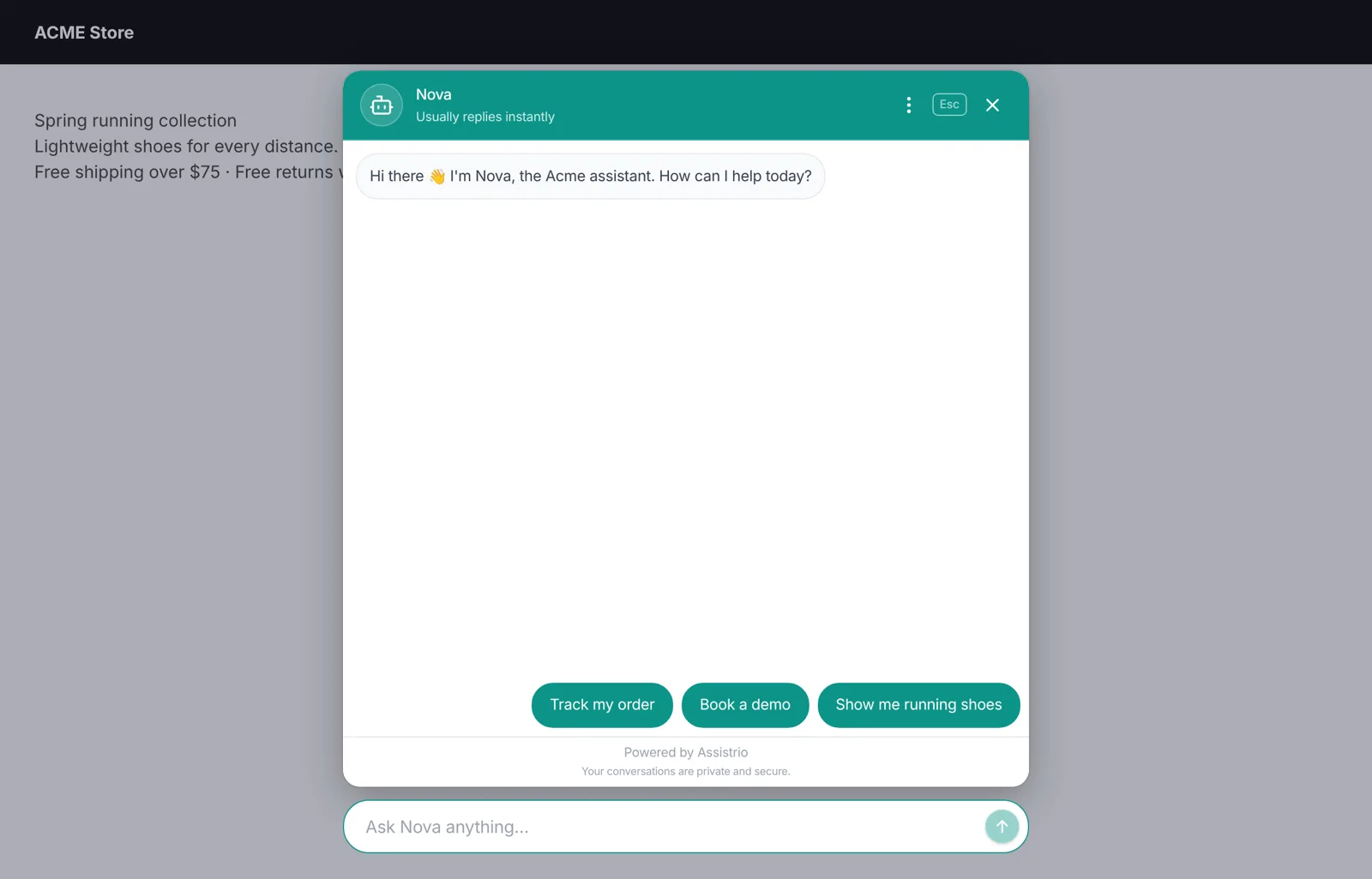
Center Stage is an “Ask AI” message box at the bottom center of your page. When a visitor types or presses Cmd/Ctrl + K, the chat opens large in the middle, above the box, and the page behind dims. It can run on its own or next to the Chat Widget.
On desktop screens it's up to 640 px wide. While it's open, the page behind it dims a little; clicking the page, pressing Esc, or ✕ closes it. On phones it uses the full width.
Turn it on
- 1
Open Channels › Center Stage
Click Set up, or pick Center Stage in the Playground and turn on its Visibility in Overview. When it's off, Center Stage doesn't open on your websites; the Chat Widget isn't affected.
- 2
Install it
With Center Stage picked in the Playground, click Deploy in the top bar and pick Website, or a website builder (Shopify, WordPress, Wix, Webflow, Squarespace, Framer, or BigCommerce) for its steps. Copy its install code — it's separate from the Chat Widget's, and both can be on the same page. Install with AI works here too.
- 3
Open it
Visitors click the box, press Cmd/Ctrl + K, or use your own button: add
data-assistrio-center-stageto any button, like<button data-assistrio-center-stage>Ask AI</button>.
Its own settings
Pick Center Stage in the Playground's channel picker. It can follow the Chat Widget or use its own:
- Instructions, things to avoid, reply settings, reply format, and translation — each with a Sync with global toggle.
- Welcome message — Sync with global welcome message or Show a welcome message of its own — and its own suggested questions.
- Its own Display settings and Capabilities (voice messages, dictation, file uploads), which start from the Chat Widget's. There's no Launcher, no proactive messages, no saved-conversations setting, and no Open automatically: Center Stage opens from its message box.
- Talk to a person and When credits run out are one choice for the whole agent, set with the Chat Widget picked.
- Its own Assistrio branding switch in Deploy › Center Stage (Pro, or the branding add-on on Starter, can turn it off).
Allowed websites
Same as Chat Widget is on by default. Turn it off to give Center Stage its own allowed websites (it starts from a copy of the Chat Widget's list).
Preview it on a full page
With Center Stage picked, click Full page preview in the Playground (or Preview in Deploy › Center Stage › Center Stage setup). It opens in a new tab on a sample page: switch between Light and Dark, or Upload background — like a screenshot of your site — to see how it looks there. The picture stays in that tab only.
Developers: see Center Stage install code and the JavaScript API.
Was this page helpful?
Need help? Contact support — we reply within one to two business days.