

Actions
Capture leads in the chat
Capture leads in your AI chatbot: ask for name, email, and phone in the conversation or with a short form, with required fields and ask strategies.
Capture leads turns conversations into leads. Open Build › Actions, pick Capture leads, and turn on the Enabled switch at the top of the page. Captured leads appear under Activity › Leads.
How to ask
| Option | What visitors see |
|---|---|
| Ask in chat | The agent asks for the details in the conversation. |
| Show a form | A short form appears under the agent's first reply. |
- Ask strategy (with Ask in chat) — Soft, Balanced (default), or Direct: how early and how firmly the agent asks.
- Polite prompts (with Ask in chat) — softer wording when the agent asks for contact details: less pushy, better for support-heavy chats.
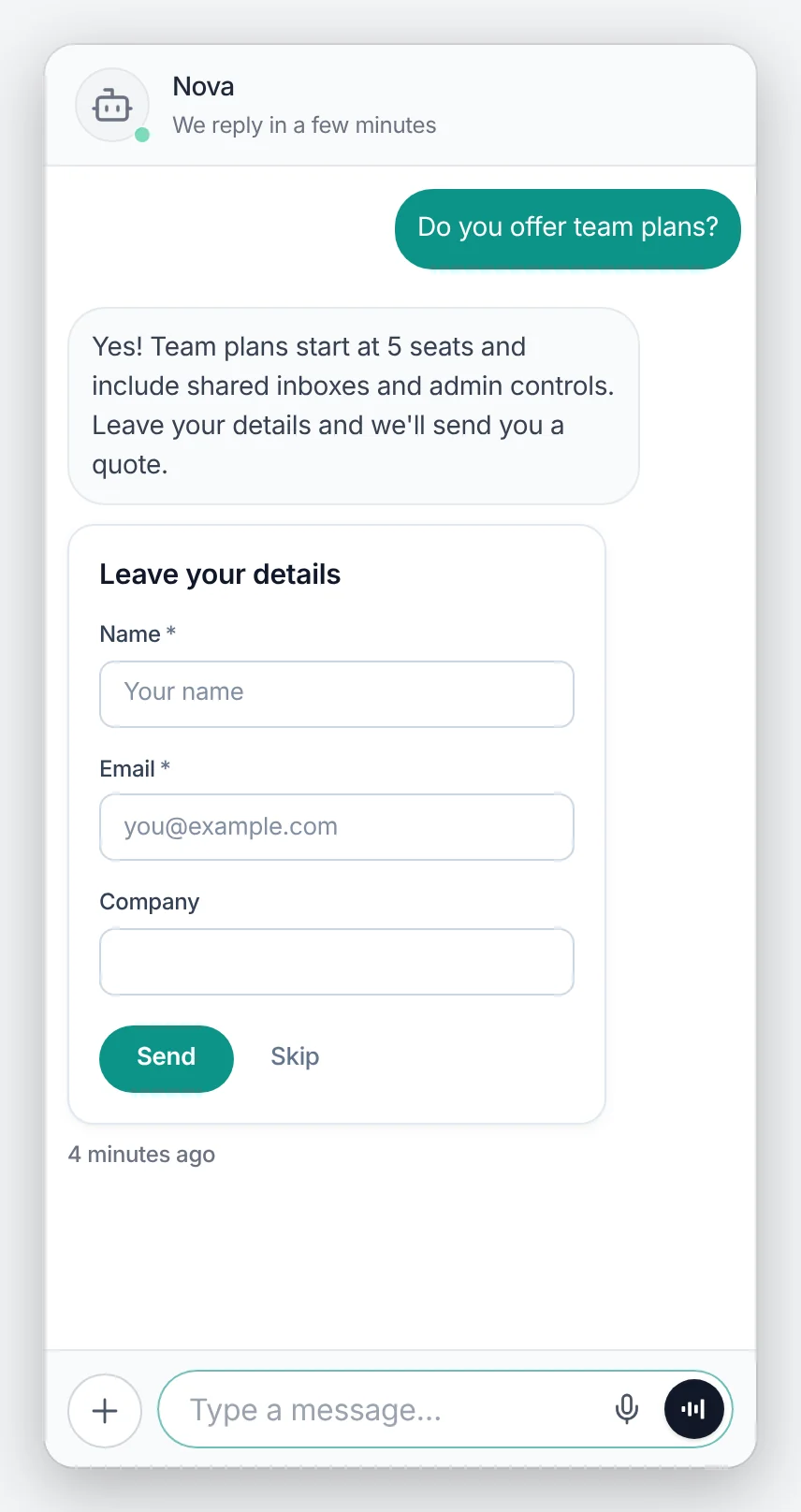
Form settings (Show a form)
| Setting | Description |
|---|---|
| Form title | The title at the top of the form (up to 60 characters). Leave it empty to use “Leave your details”. |
| Allow skipping | Shows a Skip button. Turn it off to make visitors fill in the form. |
| Button position | Where Send sits: Left, Right, or Full width. |
Fields
Add up to 10 fields. Name, email, phone, and company are built in (marked System) and can't be edited or removed. Add your own with Add field, or Create new field — new fields are saved to your shared custom fields, so you can reuse them in forms.
Fields can be any question type — text, long text, email, phone, number, date, Yes / No, single choice, multiple choice, or a checkbox such as “I agree to the privacy policy”. With Ask in chat, the agent asks for them in the conversation and offers the choices for choice fields.
- Required — the switch on each row. Built-in fields keep their setting.
- Drag a row by its handle to change the order of the questions in the form.
- The ⋯ menu on each row: Edit field, Capture instructions (tell the agent how to ask for it; AI-written instructions are on Starter and Pro — free 10 times a day per agent, then 1 AI credit each, see AI writing help), Turn off (keep the field but stop asking for it — it shows Off), and Remove.
- Choice fields show their choices under the name. Hover a row to see them all.
Tip
A lead counts as Complete when every required field is filled, and Partial otherwise. Send new leads elsewhere with webhooks, Zapier, or Slack notifications.
Was this page helpful?
Need help? Contact support — we reply within one to two business days.