

Actions
Live chat: hand chats to your team
Let your team join website chats live from the Assistrio Helpdesk while the AI pauses for that customer until the ticket is closed.
Assistrio Live Chat hands the conversation to your team in the Helpdesk. Open Build › Actions and pick Assistrio Live Chat.
- When to use — describe, in plain words, the moment the agent should run this action. The agent does it by itself when the chat matches. It starts with a detailed text — when to use it, when not to, and what to ask first — that you can edit; Reset puts it back. Not sure what to write? Click Generate with AI and say what you want (free 10 times a day per agent, then 1 AI credit each — see AI writing help).
- Message to the visitor — what the agent says when it hands the chat over (up to 300 characters).
- Details to collect — ticket fields from Custom fields (saved on: Ticket). The AI asks the visitor for them before it hands over, and fills them in on the ticket. Mark each Required to have it answered first.
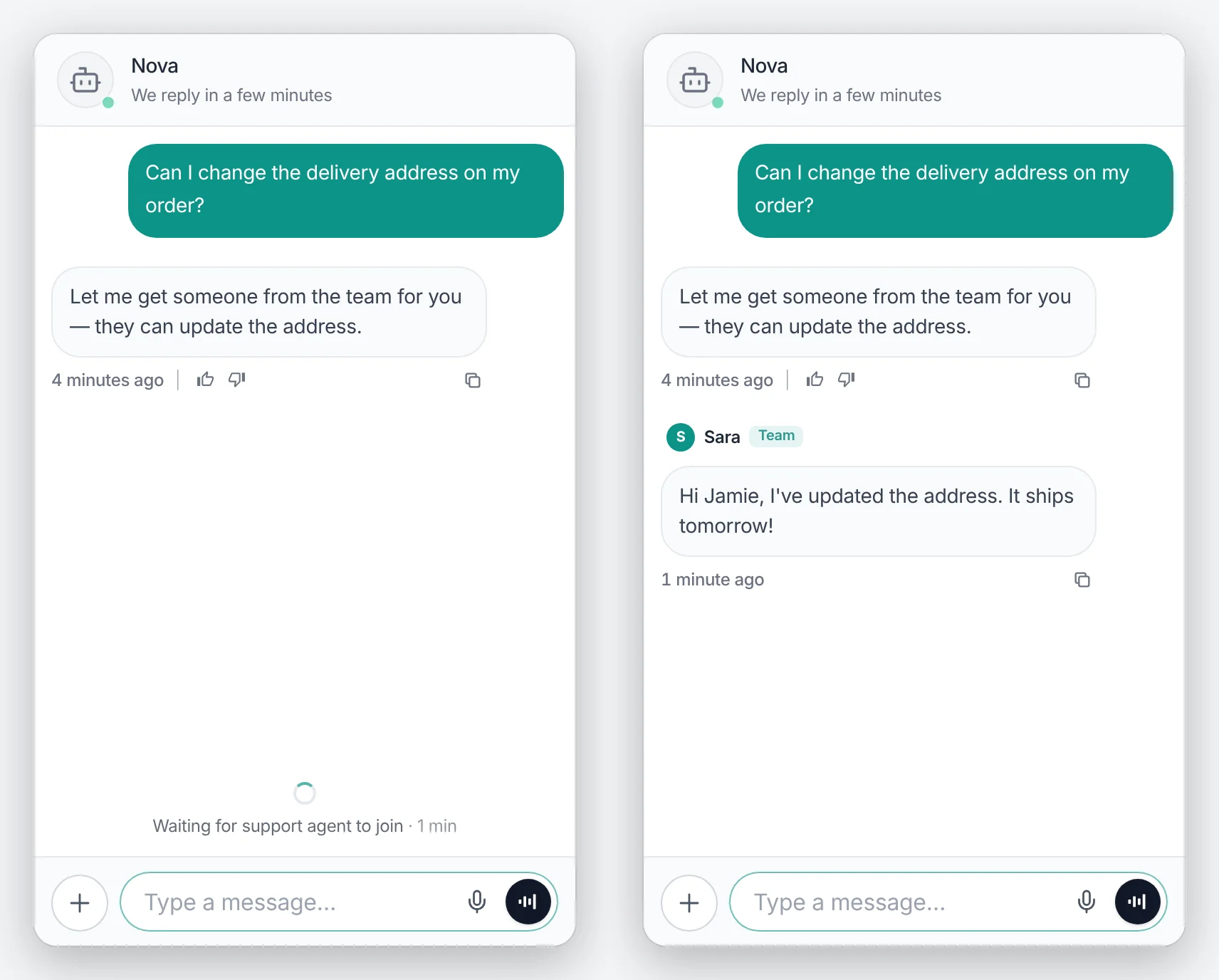
The visitor then sees “Waiting for support agent to join” until someone replies. The AI stays paused for that customer until the ticket is Closed or Cancelled, so make sure someone on your team watches the Helpdesk.
Turn on Ask the visitor first to let the visitor decide: the agent shows a Talk to a person button under its reply instead of handing the chat over itself. Email and Slack chats are always handed over directly. See Talk to a person.
Tip
Want live chat only at a certain step of a process? Add it as a step in a workflow (it shows there as Talk to a human) and turn on Only use “Talk to a human” in workflows.
Was this page helpful?
Need help? Contact support — we reply within one to two business days.